Note
It isn't necessary to install SQL Express, SMSS or any other data visualization tool. We also do not need Docker.

Welcome to the development of MobileTrack's Portal!
It is mandatory to use a machine running Windows OS because of the Microsoft-based needs we have, which aren't available on Mac or Linux.
Before we begin, make sure you have the following applications installed on your machine:
Git (along with a client to your own tastes)
IIS Express
Additionally, you are encouraged to use the 2 following tools:
GitHub Co-Pilot (can be installed via Visual Studio's Extensions manager)
Before we begin, make sure you have Visual Studio 2022 installed on your machine.
To set up Portal on your machine, make sure you have the following components installed:
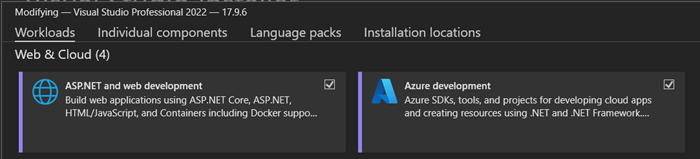
Web & Cloud
ASP.NET and Web Development
Azure Development
Other Toolsets
Data storage & processing
Individual Components
.NET 9 Runtime (Long term support)
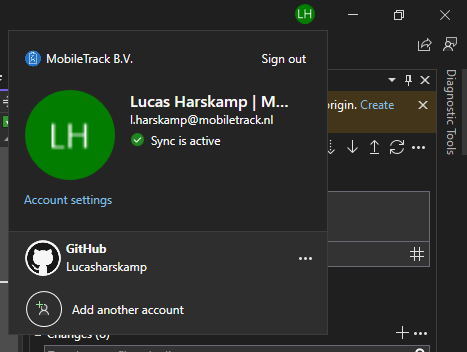
Login and set the license for VS 2022 Professional to your j.doe@mobiletrack.nl account.
After (or during, or before, doesn't matter) the Visual Studio installations, we need to set up your access to the Test_Main_Environment_Schiphol development Resource Group on Azure.
Make sure a personal account is created for you on Azure based on your j.doe@mobiletrack.nl email address, with the role of Contributor.
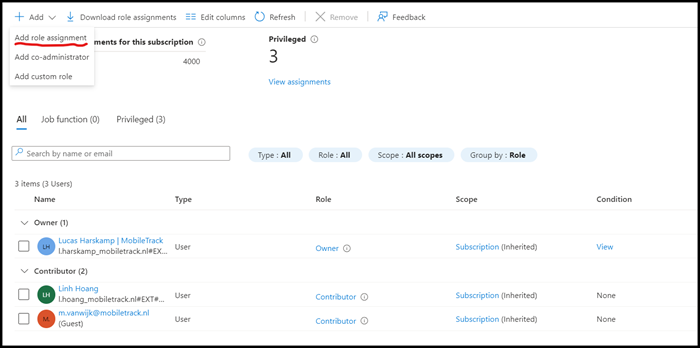
This account must then be given RBAC (Azure role-based access control) Access Rights in the PortalTestingKeyVault to allow you to get the Keyvault secrets, namely the connection strings.

Via these connection strings you can get access to the Azure Blob Storage, Azure Cosmos Database, etc.
Once everything is set up for you, log in and set up 2-factor authentication. Make sure the Microsoft Authenticator App is set up on your phone.
Open the Portal.sln solution in Visual Studio 2022.
In order for Azure to allow your user access to the Azure ecosystem while developing in Visual Studio we must log in to your Azure account from within Visual Studio.
Within Visual Studio, go to Tools -> Options -> Azure Service Authentication and sign in there to your j.doe@mobiletrack.nl Microsoft account.
During log-in it may happen that you need to handle 2FA.
After login, you can now run the solution. Set the project MobileTrack.Web.Portal as your default project on Debug - Any CPU, Rebuild the entire solution and run the executable.

Azure KeyVault: Azure.Identity.CredentialUnavailableException: DefaultAzureCredential failed to retrieve a token from the included credentials
This is caused when in the Visual Studio you're trying to access the KeyVault and it fails. This can be for two reasons:
You need to sign in again at Tools -> Options -> Azure Service Authentication in Visual Studio, as the login expired.
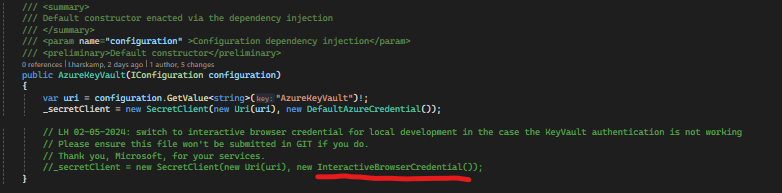
two conflicting authentications are at play; this is a temporary issue that usually lasts a few days at most. To ensure you can still work, set the KeyVault to new InteractiveBrowserCredential(); mode in AzureKeyVault.cs in AzureKeyVault.
This causes you to have to sign in using the browser when starting the web server.